In the vast universe of Adobe Illustrator, the pencil tool often emerges as the unsung hero, quietly powerful and brimming with potential. Whether you're sketching a quick concept, refining a logo design, or customising typography for a standout brand identity, the pencil tool in Illustrator is your digital Swiss Army knife. In this comprehensive guide, we'll dive deep into the world of the Illustrator pencil tool, covering settings and shortcuts, best use cases, and the pros and cons of wielding this versatile tool. Plus, we'll explore how it can amplify your design work when paired with devices like Wacom tablets and iPads.
Settings & Shortcuts
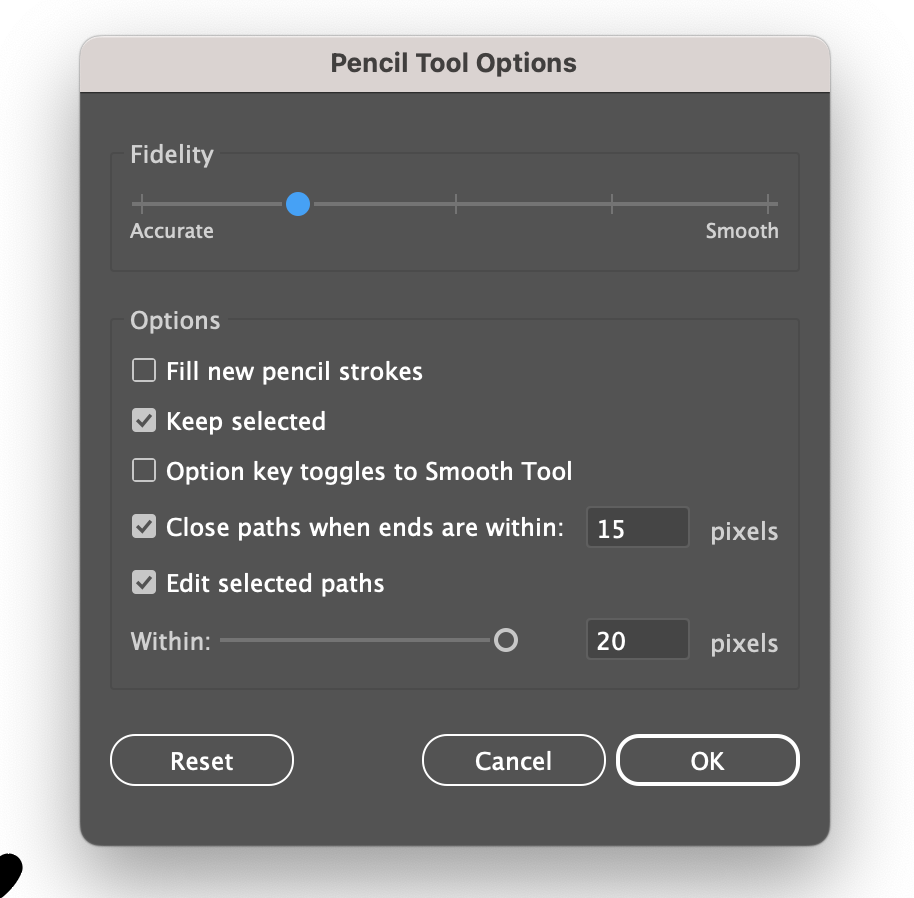
The pencil tool, located in the toolbar (or under the shapeshifter tool if it's not visible), is as mighty as it is straightforward. Its settings are a treasure trove for those willing to explore. Double-clicking the pencil icon opens a dialogue box where you can adjust fidelity (how closely the path follows your mouse or stylus movement) and smoothness, which can make or break the fluidity of your lines. Keep selected is another handy setting to turn on - specially whilst refining your final piece.
Shortcuts are the secret sauce to speeding up your workflow:
- N is your go-to key to activate the pencil tool.
- Holding Alt (Option on Mac) transforms the pencil into the smooth tool, perfect for refining those curves.
- Pressing Cmd (Ctrl on Windows) + Click allows you to quickly edit existing paths.
Best Use Cases
The pencil tool shines in scenarios demanding freedom and fluidity:
- Sketching and Freeform Drawing: Let your creativity run wild without the constraints of worrying about anchor points.
- Customising Typography: Tailor letters to fit your/your clients unique brand voice, ensuring your identity is as distinctive as your design ethos.
- Logo Design: From rough drafts to refined vectors, the pencil tool is integral in crafting memorable logos, including those for niche markets like makeup artists.
Pros and Cons
Pros:
- Uniqueness: Customising typography or illustrations with the pencil tool ensures your work is singularly yours.
- Flexibility: Easily sketch, edit, and refine designs with minimal fuss.
Cons:
- Learning Curve: First time users don’t be fooled - mastering its nuances, especially when tweaking typography, can be challenging.
- Precision: While freedom is a plus, too much of it without a careful hand can lead to less polished outcomes.
Customising Typography
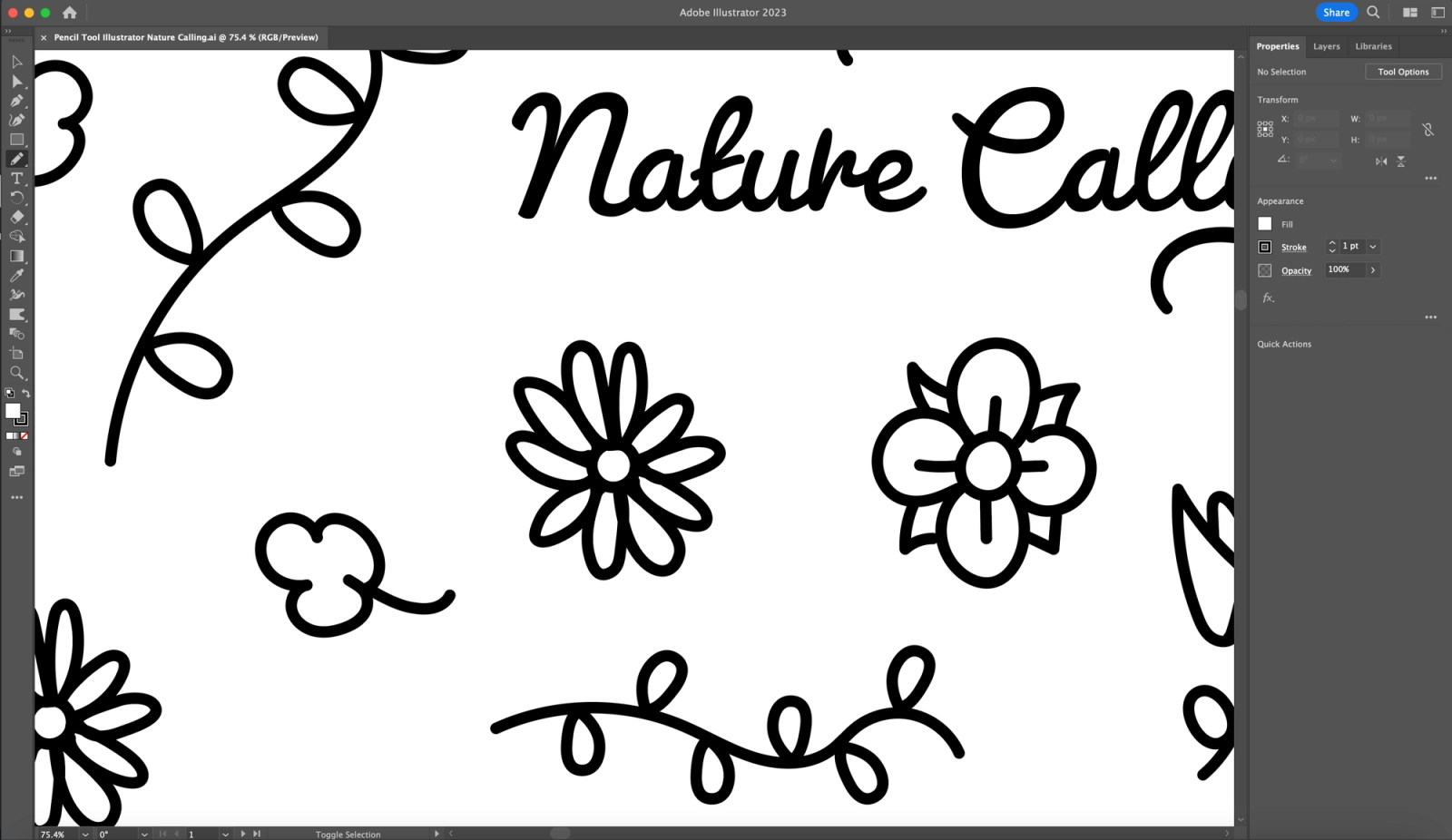
Transforming generic typefaces into bespoke marvels is both an art and a science. The pencil tool, combined with the smooth tool, allows designers to tweak and fine-tune characters, adding personality and brand-specific flair. However, tread carefully—typography is a meticulous craft, and altering letterforms can sometimes lead to readability issues or dilute the typeface's integrity.
Drawing Illustrations
Illustrations gain an organic, hand-drawn quality with the pencil tool, setting your work apart in a digital world often dominated by precision and perfection. The tool’s flexibility encourages experimentation, from whimsical characters to intricate patterns.
Integrating Technology
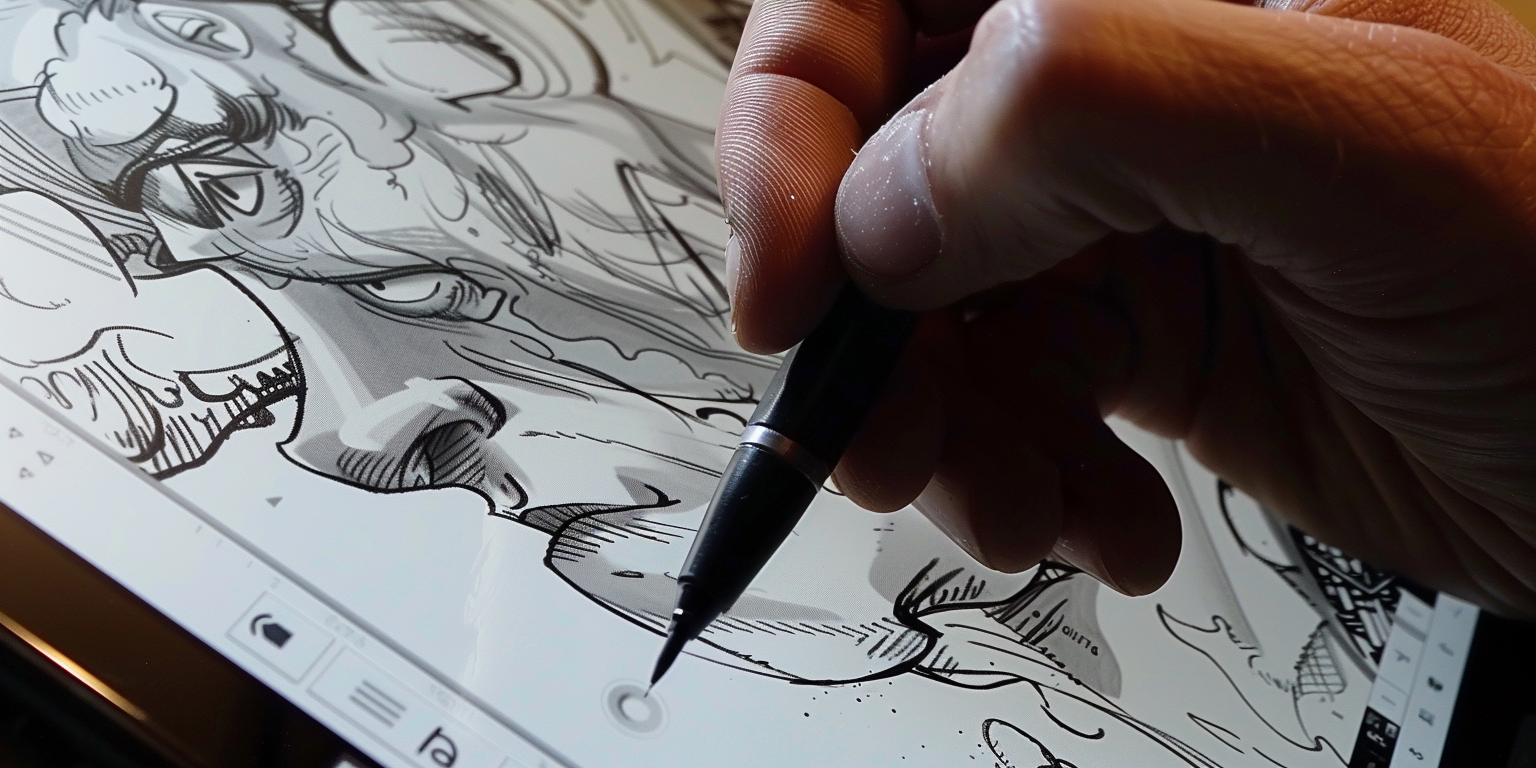
Pairing the pencil tool's capabilities with the precision of a Wacom tablet or the portability of an iPad can significantly enhance your design process. These devices not only offer greater control but also mimic the natural experience of drawing on paper, making the transition from traditional to digital artistry seamless and enjoyable.
Drawing Tablets
- Wacom Intuos Pro: A favourite among professional artists and designers, the Wacom Intuos Pro offers exceptional pressure sensitivity and precision. Its sleek design and customisable Express Keys make it a top choice for those looking to streamline their workflow in Illustrator.
- Wacom Cintiq 22: For those who prefer drawing directly onto a screen, the Wacom Cintiq 22 is an excellent investment. With its large, vibrant display and superb colour accuracy, it's perfect for detailed illustration work and typography customisation in Illustrator.
- XP-Pen Artist 15.6 Pro: A more affordable alternative to the Wacom Cintiq, the XP-Pen Artist 15.6 Pro offers a great drawing experience with a fully-laminated IPS display and 88% NTSC colour accuracy. It's a solid choice for both beginners and seasoned professionals.
iPads
- iPad Pro (12.9-inch, latest generation): With its edge-to-edge Liquid Retina display and support for the Apple Pencil (2nd generation), the iPad Pro is a powerhouse for creatives. Its portability and versatility make it ideal for sketching, drawing, and even finalising designs in Adobe Illustrator using the Illustrator on iPad app.
- iPad Air (latest generation): The iPad Air is a more affordable option that still packs a punch. It supports the Apple Pencil (2nd generation) and features a stunning 10.9-inch Liquid Retina display. It's a great tool for designers who want performance and portability without the Pro price tag.
The Smooth Tool: Your Secret Weapon
Adjacent to the pencil tool, the smooth tool is invaluable for refining those lines and curves, ensuring your artwork looks polished and professional. It's particularly useful for eliminating unnecessary anchor points, simplifying your designs without compromising on quality.
Conclusion
Adobe Illustrator's pencil tool is a gateway to creativity, offering designers a versatile instrument in their digital toolkit. Whether fine-tuning typography to ensure your brand stands out or bringing illustrations to life with a personal touch, the pencil tool, especially when used alongside technological allies like Wacom tablets and iPads, is indispensable.